
Most habit trackers don’t fail because of the habit. They fail at the checkbox. Opening an app, finding the habit and tapping it takes ten seconds, and on a tired evening ten seconds is enough to skip it, then skip it again, until the tracker quietly stops matching your life.
A widget fixes that. The habit sits on your Home Screen, one tap marks it done, and every time you unlock your phone you see where you stand. Here is how to set up a habit tracker widget on iPhone so tracking takes no effort at all.
Why tracking from the Home Screen works
Seeing your progress is not a nice extra; it’s one of the things that make goals work. A 2016 meta-analysis in Psychological Bulletin by Benjamin Harkin and colleagues pooled 138 studies and found that monitoring progress helped people reach their goals, and that the effect was stronger when progress was recorded rather than just noticed.
A widget does both. It records the day with one tap, and it puts the record where you look dozens of times a day. The phone becomes the cue instead of the distraction.
What you can do with widgets on iPhone
- Home Screen widgets can have buttons. You mark a habit right on the widget, without opening the app.
- Lock Screen widgets keep a streak in sight every time you pick up the phone.
- Control Center can hold a button for your habit, one swipe away in any app.
- Siri and Shortcuts let you mark a habit by voice, or from an automation.
How to add the Ripply widget to your Home Screen
- Touch and hold an empty area of the Home Screen until the apps jiggle.
- Tap Edit, then Add Widget, and search for Ripply.
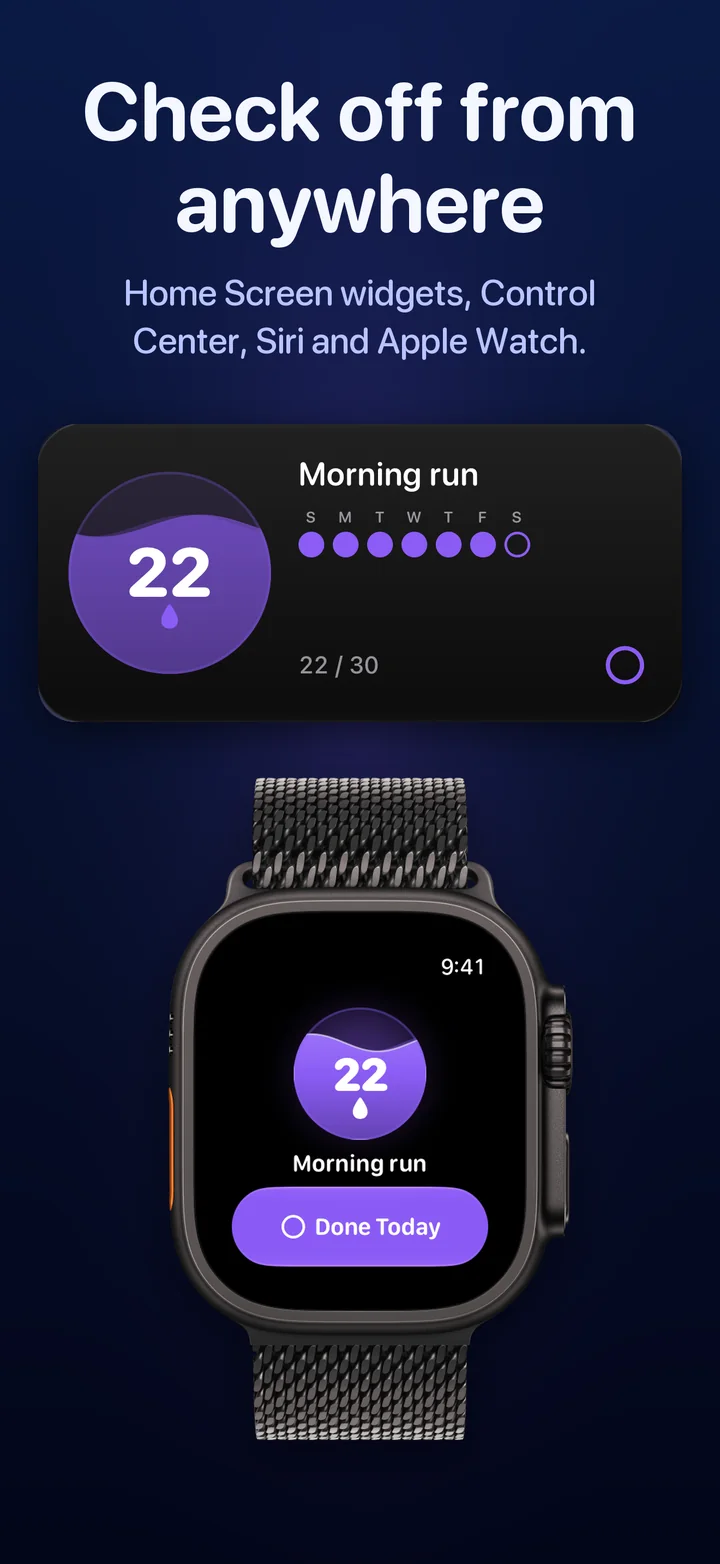
- Choose a widget. Ripply, small or medium, shows one habit, its water level and streak, with a button to mark today. All Habits, medium or large, shows every habit’s water at a glance; tap one to mark it done.
- Tap Add Widget and place it where your thumb already goes, ideally on the first page.
- To choose which habit the small or medium widget shows, touch and hold it and tap Edit Widget.
Add your streak to the Lock Screen
- Touch and hold the Lock Screen, tap Customize, then Lock Screen.
- Tap the widget area and choose Ripply: a ring with your streak, a line with the habit and its days, or a short line above the clock.
- Tap Done. Now the streak is there every time you check the time.
Mark a habit from Control Center or with Siri
- Control Center: open Control Center, tap +, then Add a Control, and choose Ripply. One tap marks the habit from anywhere.
- Siri: say “Mark my habit done in Ripply”. It works with AirPods too, for the habits you finish with your hands full.
Tips that make the widget work for you
- Put it next to the cue. If your habit happens in the morning, put the widget on the page you see first thing.
- One habit, one widget. A single habit with a big button beats a crowded grid. Use All Habits once you have three or more.
- Mark it right after. The tap is the end of the habit, not a chore for later. Doing it immediately is what makes the record honest.
- Don’t hide it in a folder or Smart Stack. A widget you have to look for stops being a cue.
Questions people ask
Can I check off a habit from the widget without opening the app?
Yes. Since iOS 17, widgets can have buttons. In Ripply, tap the button on the widget, or the habit in All Habits, and the day is marked; the app updates on its own.
Is there a free habit tracker widget for iPhone?
Ripply is free to download, and its widgets, the Lock Screen widget, the Control Center button and Siri are all included. There’s no subscription and no ads.
Do habit widgets work on Apple Watch?
Ripply also has an Apple Watch app with a Done Today button, and watch complications that show your streak on the watch face. See our Apple Watch habit tracker guide.
Track your habits from the Home Screen with Ripply
Ripply is a habit tracker for iPhone and Apple Watch where every habit is water you watch fill up, one day at a time. Mark the day from a Home Screen widget, Control Center, Siri or your wrist, and the water rises toward your goal, while the Lock Screen keeps your streak in sight.
Five habits at most, each with its own goal, freezes that save a streak after a missed day, and no account, no ads and no tracking. Your habits sync through your own iCloud.
 Ripply
A free habit tracker for iPhone and Apple Watch. Set a goal of 7 to 100 days, mark each day in a second, and keep your streak with freezes.
 More about Ripply →